The Subscribed Toolbar Chrome extension lets you turn any compatible JSON feed into a live, auto-updating bookmarks folder. In this guide, you’ll learn how to:
- Install the extension
- Open its settings
- Connect it to an example JSON feed
- Confirm that the bookmarks appear in Chrome
To keep things simple, we’ll use this working example feed URL:
You can replace it with your own feed later.
1. Install the Subscribed Toolbar Extension
Step 1 – Open the Chrome Web Store page
Open the Subscribed Toolbar listing in the Chrome Web Store.
💡 Tip: You can search for “Subscribed Toolbar Chrome extension” or use a direct link if you have one.
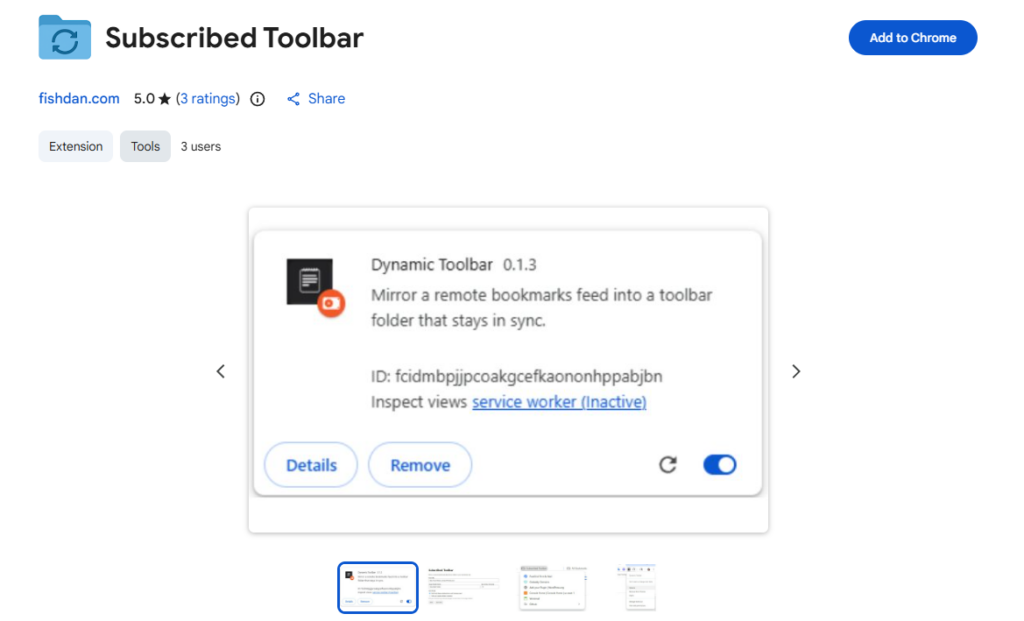
Step 2 – Click “Add to Chrome”
Click the Add to Chrome button.
Chrome will show a confirmation dialog describing the permissions the extension needs.
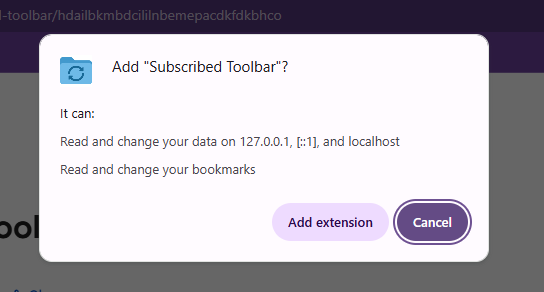
Click Add extension to complete the installation.
2. Confirm the Extension Is Installed
After installation, Chrome will usually show a small notification confirming that Subscribed Toolbar has been added.
To make sure you can find it easily:
- Click the Extensions icon (the puzzle-piece) in the Chrome toolbar.
- Look for Subscribed Toolbar in the list.
- (Optional) Click the pin icon to keep it visible in your toolbar.
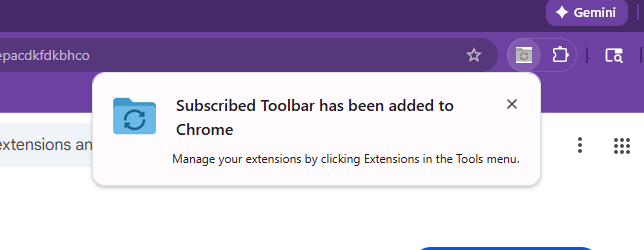
Now the extension is installed and ready to configure.
3. Open the Subscribed Toolbar Options Page
To use the extension, we need to point it at a JSON feed of bookmarks.
- Right-click the Subscribed Toolbar icon in the Chrome toolbar.
- Click Options (or Manage extension → Extension options, depending on your Chrome version).
This opens the extension’s settings page in a new tab.
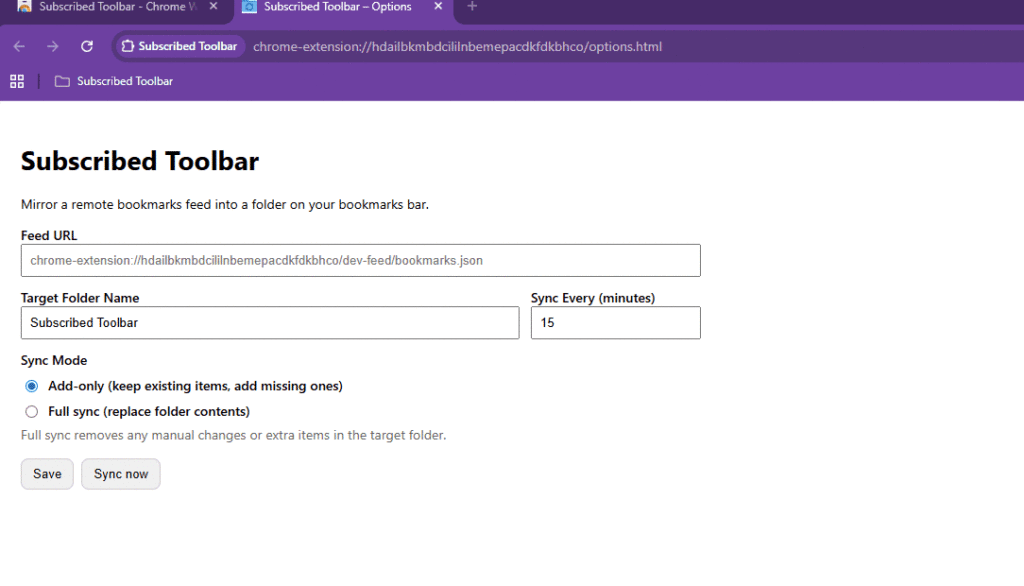
You should see fields for:
- A Source URL (the JSON feed)
- A target bookmarks folder
- One or more syncing options (such as add-only or full replace)
4. Enter the Example Source URL
We’ll now connect the extension to a real JSON feed so you can see it in action.
In the Source URL or Feed URL field, paste:
This URL points to a small, generic JSON feed hosted at fishdan.com that the extension can safely mirror into your bookmarks.
Next:
- Choose the Chrome bookmarks folder where you want the links to appear.
- You can use an existing folder, or create one just for this feed (e.g.
Subscribed Toolbar / Example Feed).
- You can use an existing folder, or create one just for this feed (e.g.
- Choose your sync mode:
- Full replace – the folder will always exactly match the feed.
- Add only – new items from the feed are added, but nothing is removed.
When you’re done, your options page should show:
- The example URL in the feed/source field
- Your chosen folder
- Your chosen sync mode
Insert Screenshot 5 here
(Options page with example URL filled in and settings selected)
Click Save, Sync, or the equivalent button on the page to apply the settings.
5. Let the Extension Sync Your Bookmarks
After you save your settings, Subscribed Toolbar will:
- Fetch the JSON feed from
https://www.fishdan.com/json/generic/generic.json - Create (or update) the target bookmarks folder you selected
- Add folders and links from the feed into Chrome’s bookmarks
To check that it worked:
- Open the Bookmarks bar or Bookmark Manager (
Ctrl+Shift+OorCmd+Option+B). - Locate the folder you selected in the extension’s settings.
- Expand it and look for the bookmarks that came from the example feed.
Insert Screenshot 6 here
(Chrome bookmarks showing the synced folder and links)
If you see links that match the feed, your extension is configured correctly!
6. What Happens Next?
Now that Subscribed Toolbar is connected to a feed:
- Every time the JSON feed is updated, the extension can keep your chosen bookmark folder in sync.
- You can later replace the example URL with a feed generated from your own system (such as a WordPress site using Jsonmaker).
- You can subscribe to multiple feeds by repeating this process with different folders and URLs (if the extension supports multiple feeds; check its documentation).
7. Quick Troubleshooting Tips
If things don’t look right:
- No bookmarks appear?
- Double-check that the URL is exactly:
https://www.fishdan.com/json/generic/generic.json - Make sure you clicked Save or Sync in the options page.
- Double-check that the URL is exactly:
- Folder looks wrong or empty?
- Confirm you’re looking at the same folder you selected in the options page.
- Feed errors?
- Some extensions refuse to touch bookmarks if the JSON is invalid. Using the example URL above should avoid that problem; if you use your own feed later, make sure it returns valid JSON.
That’s it! You’ve successfully:
- Installed the Subscribed Toolbar extension
- Connected it to a working JSON feed
- Confirmed that the feed is mirrored into your Chrome bookmarks
In the next guide, we’ll look at how to build and manage your own bookmark feeds using WordPress and Jsonmaker, so the extension can sync your personal or team-managed link collections.
Leave a Reply