Introduction
Jsonmaker lets you create your own private, customizable bookmark library right inside your WordPress account. Each folder in your library can generate a live JSON feed, which can be synced directly into your Chrome bookmarks using the Subscribed Toolbar extension.
This guide will show you how to:
- Register an account
- Log in and access your personal Jsonmaker library
- Create folders and bookmarks
- Import your current Chrome toolbar
- Use the View Node button to get a live JSON feed for any folder
- Sync that feed into Chrome
- Keep everything up to date automatically
Let’s begin.
1. Create an Account
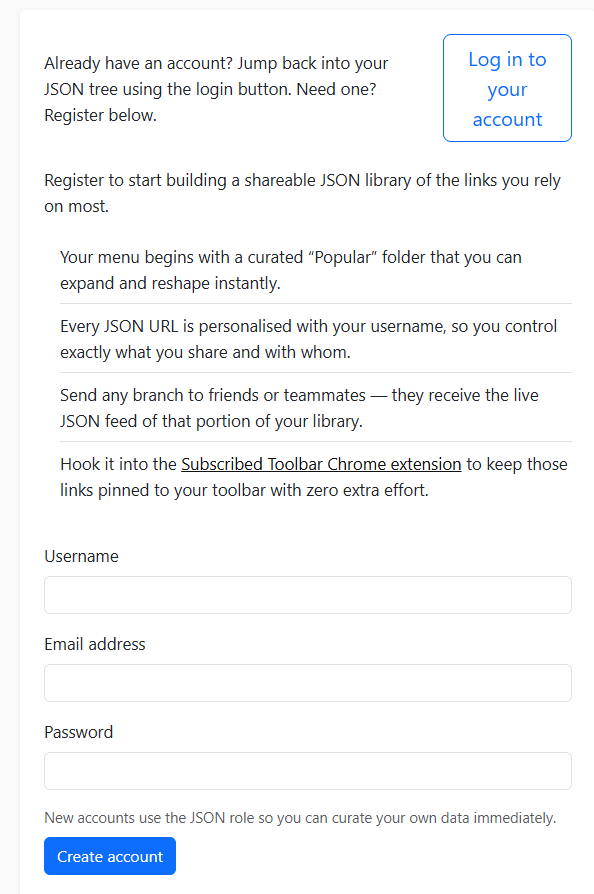
When you first visit the Jsonmaker page at fishdan.com/jsonmaker, you’ll see a simple registration form if you are not logged in.
Create your account by entering:
- Username
- Password
Then click Create account.
Your account is created instantly.
2. Log Into Your Jsonmaker Library
Once your account is created, click Log in to your account.
After logging in, Jsonmaker will automatically load your personal bookmark tree.
This tree is private — only you can edit it.
Jsonmaker may start you off with a default folder such as “Popular.”
3. Build Your Bookmark Tree
You can fully customize your toolbar by:
✔ Adding folders
✔ Adding links
✔ Dragging items into other folders
✔ Renaming folders or links
✔ Deleting items you no longer want
To add something new:
- Click Add Node
- Choose Folder or Link
- Enter a title (and URL if it’s a link)
- Save

4. Import Your Current Chrome Toolbar (Live Import)
Jsonmaker does not require HTML uploads. Instead, it includes a button called Import Current Toolbar, which pulls bookmarks directly from your Chrome toolbar using the Subscribed Toolbar extension.
To use this feature:
- Install & configure Subscribed Toolbar.
- Add folders and links to the Subscribed Toolbar you just installed
- Return to the Jsonmaker page.
- Click Import Current Toolbar in the “Bulk Import JSON” section.
Jsonmaker will scan the synchronized toolbar and automatically add the bookmarks to your tree.
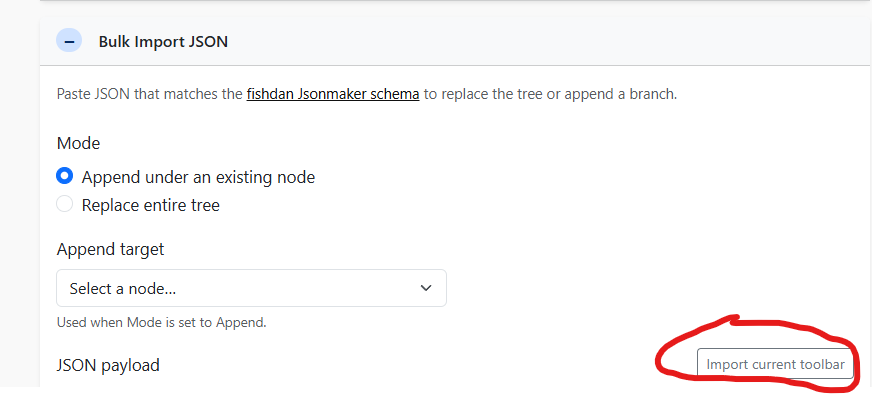
This gives you a fast, live way to populate your bookmark library. After you do this make sure you do step 6 to put the changes you made into YOUR subscribed folder.
5. Save Your Changes
Any time you:
- Add folders
- Add links
- Reorganize your tree
- Import your toolbar
…click the Save button.
Saving refreshes your data and updates all JSON feeds connected to your folders.
📸 Screenshot: Save confirmation
6. Use the “View Node” Button to Get a Feed URL for Any Folder
Every folder in your Jsonmaker tree has a View Node button next to it.
This button is how you get the JSON feed URL for that folder — the URL you or someone else can subscribe to using the Subscribed Toolbar extension.
How to use it:
- Hover over a folder.
- Click View Node.
📸 Screenshot: Jsonmaker folder showing the View Node button
What happens next:
Jsonmaker opens a new page displaying the live JSON feed for that folder.
The URL in your browser’s address bar is the feed URL.
Example:
https://your-site.com/json/USERNAME/work.json
Copy this URL.
📸 Screenshot: Browser showing JSON feed output
Why the View Node button matters
- It gives you the exact URL your Subscribed Toolbar feed needs.
- The URL can be shared with others.
- Each folder has its own link.
- You can subscribe to multiple folders separately.
- Any changes you make will update the JSON feed automatically.
This is the bridge between Jsonmaker and your browser bookmarks.
7. Sync Your Folder Into Chrome
Once you have your feed URL from the View Node button:
- Open Subscribed Toolbar → Options
- Paste the feed URL into the Source URL box
- Choose a Chrome bookmarks folder
- Click Sync
Chrome will now mirror the contents of your Jsonmaker folder.
If you change the folder in Jsonmaker and click Save, the next sync will update Chrome automatically.
📸 (Optional) Screenshot: Subscribed Toolbar options with user feed added
8. Keeping Your Toolbar Updated
You can update your bookmark tree at any time:
- Add new folders
- Add new links
- Move items around
- Delete old entries
- Import from Chrome again
Click Save, and your feeds refresh instantly.
Subscribed Toolbar will then update your Chrome bookmarks automatically.
9. Sharing a Folder With Others
If you want other people to access a folder you created:
- Click View Node
- Copy the feed URL
- Send it to them
They can subscribe to your folder and stay updated automatically.
Perfect for:
- Team resource lists
- Classroom links
- Shared research collections
- Any curated bookmark set
You maintain one master copy — everyone else receives updates automatically.
Conclusion
Jsonmaker gives every user their own personal, private bookmark management system, complete with powerful features:
- Drag-and-drop editing
- Live import from Chrome
- One feed per folder
- Automatic sync with Subscribed Toolbar
- Sharable links for collaboration
Once your folders are connected to Subscribed Toolbar, you never have to manually manage browser bookmarks again. Jsonmaker becomes your source of truth.
Leave a Reply